Screen reader testing is one of the most practical ways web developers can identify accessibility issues on a website and move toward WCAG compliance. Yet many developers skip this step entirely, relying on automated tools alone to catch problems. Automated scanners are valuable, but they miss roughly 40% of accessibility barriers particularly those involving navigation flow, alt text quality, and dynamic content announcements.
If you want your site to actually work for people who rely on assistive technology, you need to hear what your pages sound like. This guide walks you through screen reader testing step by step, from choosing the right tools to interpreting results and applying fixes.
Whether you're building a new project or auditing an existing one, these techniques will sharpen your understanding of real-world usability. For a broader overview of how to find and fix website accessibility issues, that resource pairs well with the hands-on approach we cover here.
Key Takeaways
- Screen reader testing catches issues that automated accessibility scanners consistently miss.
- NVDA and VoiceOver are free, widely used, and sufficient for most testing needs.
- Test with keyboard-only navigation before launching any screen reader session.
- Alt text quality matters more than alt text presence for real screen reader usability.
- Document your findings with severity ratings to prioritize fixes efficiently.
Step 1: Choose Your Screen Reader Tools
The first decision is which screen reader to use, and the answer depends on your operating system and target audience. NVDA (NonVisual Desktop Access) is the most popular free screen reader on Windows and pairs best with Firefox. VoiceOver comes built into every Mac and iOS device, making it the default choice for Apple platforms. JAWS remains the industry standard in enterprise and government environments, though its annual license costs over $1,000.
You don't need to test on every screen reader. Focus on the two that cover the largest share of your audience. For most web projects, NVDA on Windows with Firefox and VoiceOver on macOS with Safari will cover the majority of real-world usage scenarios. If your audience includes significant mobile traffic, VoiceOver on iOS or TalkBack on Android should also be part of your testing rotation.
Matching Tools to Browsers
Screen readers perform differently depending on the browser they're paired with. NVDA works best with Firefox, while JAWS is optimized for Chrome and Edge. VoiceOver delivers the most reliable results in Safari. Testing a screen reader in a non-recommended browser can produce false positives or mask real problems, so stick to the established pairings for accurate results.
If you're working with a framework like Angular and considering alternatives for better accessibility support, some Angular alternatives offer stronger built-in ARIA handling. Framework choice can significantly affect how much manual accessibility work you need to do downstream. Regardless of your stack, screen reader testing remains non-negotiable for catching what code-level analysis cannot.
Download NVDA from nvaccess.org. It's completely free and takes under five minutes to install and configure for web testing.
Step 2: Prepare Your Testing Environment
Before firing up a screen reader, prepare your environment so testing sessions produce clean, actionable data. Close unnecessary applications and browser tabs to eliminate audio distractions. Use headphones rather than speakers. Screen reader output at high speed can be difficult to parse through laptop speakers, and you'll catch nuances in pronunciation and timing more easily with direct audio. Set the speech rate to a moderate pace initially; experienced testers increase speed over time.
Keyboard Navigation First
Run through your page using only the keyboard before you add screen reader output to the mix. Press Tab to move through interactive elements, Enter or Space to activate them, and arrow keys to navigate within components like menus and radio groups. If you can't reach every interactive element, or if focus disappears behind a modal, those are blocking issues that need fixes before screen reader testing will be productive. Keyboard operability is a prerequisite, not a parallel concern.
If your site traps keyboard focus inside a modal without providing an escape mechanism, screen reader users will be completely stuck on that page.
Create a simple test script that lists the pages and user flows you plan to evaluate. At a minimum, test your homepage, a content-heavy interior page, any forms, and your primary navigation. Include at least one dynamic interaction: a dropdown menu, a modal dialog, or an accordion panel. These components are where the majority of screen reader failures occur because they depend heavily on correct ARIA attributes and focus management.
Set up a spreadsheet or document to record findings during the session. Columns should include the page URL, the element or component tested, the expected behavior, the actual screen reader output, and the WCAG success criterion that applies. Structured documentation saves enormous time when you hand off issues to other developers or revisit them weeks later.
Step 3: Run Your Screen Reader Testing Sessions
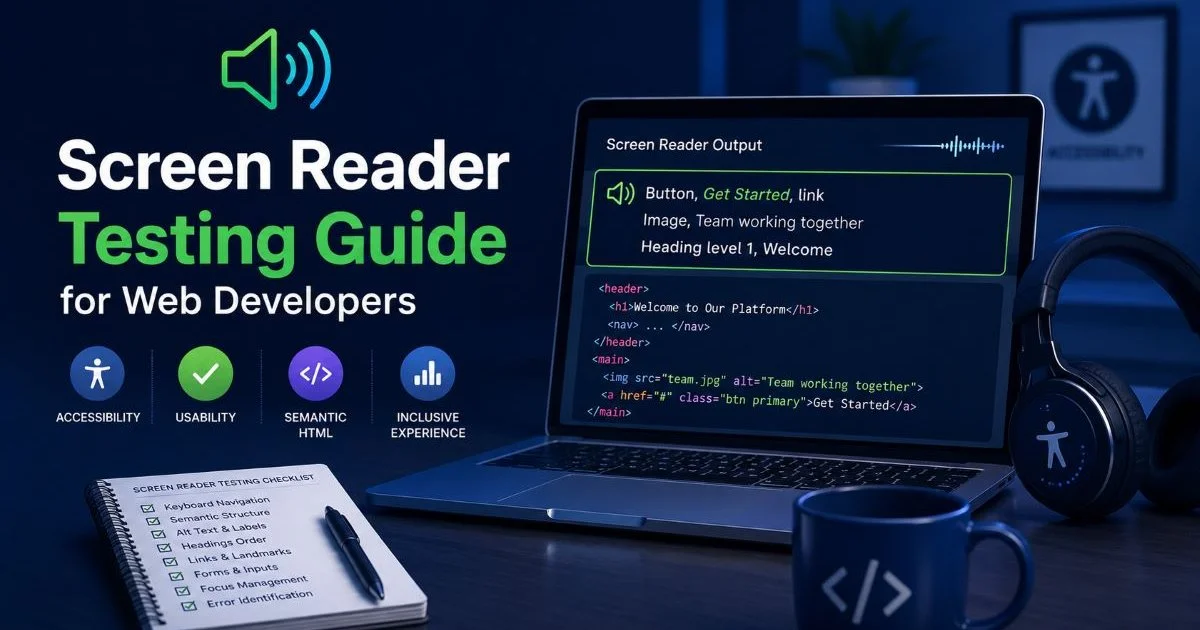
Start your screen reader session by loading the target page and letting the reader announce the page title. A missing or generic title like "Untitled" is your first red flag. Next, use the screen reader's heading navigation shortcut (H key in NVDA and VoiceOver) to cycle through all headings on the page. Headings should form a logical hierarchy with H1 followed by H2s and H3s, not a random jumble of heading levels chosen for visual styling. A broken heading structure makes the page feel like a book with no table of contents.
What to Listen For
Navigate through images and listen to how the alt text is read. Generic descriptions like "image" or "photo" provide zero value. Good alt text communicates the purpose of the image in context. A product photo should describe the product; a decorative border image should have an empty alt attribute so the screen reader skips it entirely. Alt text compliance is one of the most common WCAG failures, and it's also one of the easiest to fix once you know what's wrong.
"The best alt text answers a simple question: if this image disappeared, what information would be lost?"
Move through the forms field by field. Each input should announce its label clearly. If you hear "edit text" or "combo box" without a descriptive label, the form control is missing a programmatic association , typically a missing for attribute on the label element or a missing aria-label. Test error messages too: when you submit a form with invalid data, the screen reader should announce what went wrong and which field needs attention. Silent failures leave users guessing.
Test dynamic content carefully. Open a dropdown menu and confirm the screen reader announces that it's expanded. Trigger a modal and verify that focus moves into the dialog and that the background content is marked inert. Close the modal and check that focus returns to the element that opened it. These interaction patterns are defined in the WAI-ARIA Authoring Practices, and getting them wrong creates some of the most disorienting experiences for screen reader users navigating your web application.
ARIA roles and properties only work when applied correctly adding role="button" to a div without also adding keyboard event handlers creates a worse experience than having no role at all.
Step 4: Document Findings and Apply Fixes
After each testing session, compile your notes into a structured report. Every issue should reference a specific WCAG success criterion for example, "Missing form label" maps to WCAG 2.1 Success Criterion 1.3.1 (Info and Relationships). This mapping gives your team a shared vocabulary and helps prioritize work according to conformance level. Level A issues are the most fundamental barriers and should be addressed first, followed by Level AA, which is the standard most legal requirements reference.
Prioritizing by Severity
Not all issues carry equal weight. A missing skip-navigation link is annoying but workable; a form that can't be submitted with a keyboard is a total blocker. Assign severity ratings, critical, major, and minor, based on how much the issue prevents task completion. Critical issues stop users from accessing core functionality. Major issues force awkward workarounds. Minor issues are inconveniences that don't block access but degrade the overall usability experience.
Apply fixes systematically, starting with the most critical barriers. Add proper alt text to images, associate labels with form controls, correct heading hierarchies, and implement focus management for dynamic components. After each round of fixes, retest with the screen reader to confirm the issue is resolved. Regression testing matters here because fixing one component's ARIA attributes can sometimes break the reading order of adjacent elements on the page.
Build screen reader testing into your CI/CD workflow by scheduling manual testing sessions after each sprint, not just before major releases.
Track your progress over time. A simple spreadsheet showing issue counts by severity across testing rounds gives you a clear picture of whether your site's accessibility is improving. Share these metrics with stakeholders. Concrete numbers are far more persuasive than abstract commitments to "do better." Consistent testing and documentation transform accessibility from a one-time checkbox into an ongoing quality practice that benefits every visitor.

Frequently Asked Questions
?How do I start a screen reader session if I've never used NVDA before?
?Is NVDA good enough or do I need to buy JAWS for thorough testing?
?How long does a full screen reader testing session realistically take?
?Does passing automated accessibility scans mean screen reader testing isn't needed?
Final Thoughts
Screen reader testing is the most honest mirror you can hold up to your website's accessibility. Automated tools give you a starting point, but hearing your content through a screen reader reveals what your code actually communicates and where it falls silent. Start with NVDA or VoiceOver, test your most critical user flows, document what you find, and fix issues by severity. The process gets faster with practice, and the payoff is a site that genuinely works for everyone who visits it.
Disclaimer: Portions of this content may have been generated using AI tools to enhance clarity and brevity. While reviewed by a human, independent verification is encouraged.