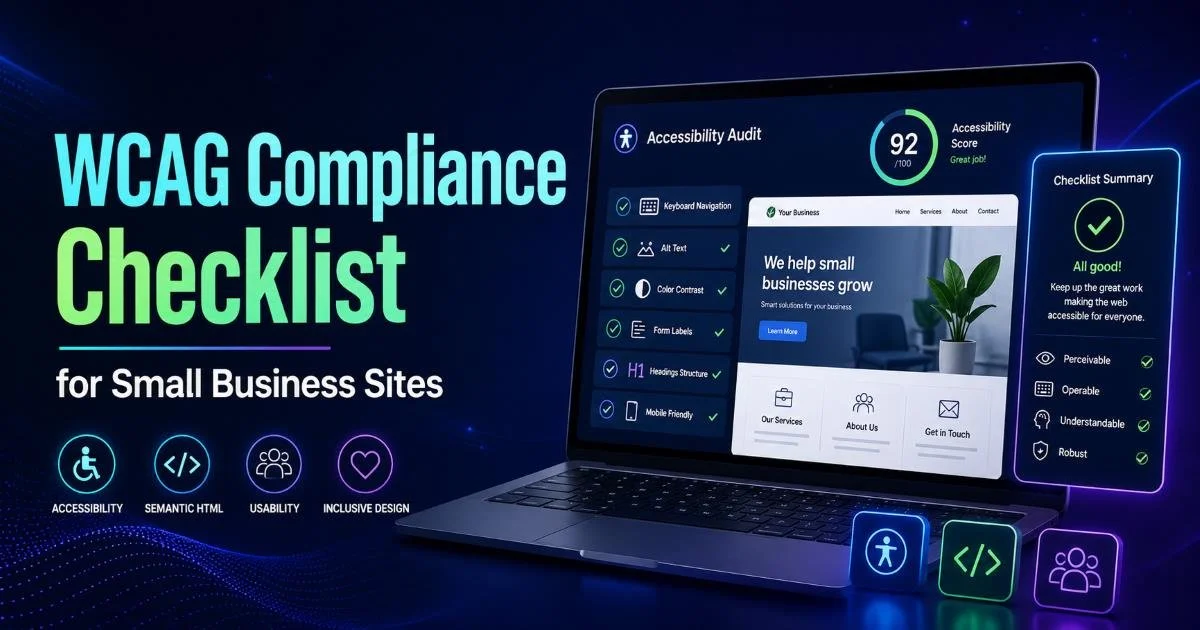
Website accessibility isn't optional anymore it's a legal and ethical responsibility that affects how millions of people interact with your small business online. WCAG compliance can feel overwhelming when you're juggling design, development, and client deadlines, but breaking it down into a practical checklist makes it manageable.
Small business sites often carry the same accessibility issues as enterprise platforms: missing alt text, poor color contrast, broken keyboard navigation, and forms that screen reader users can't complete.
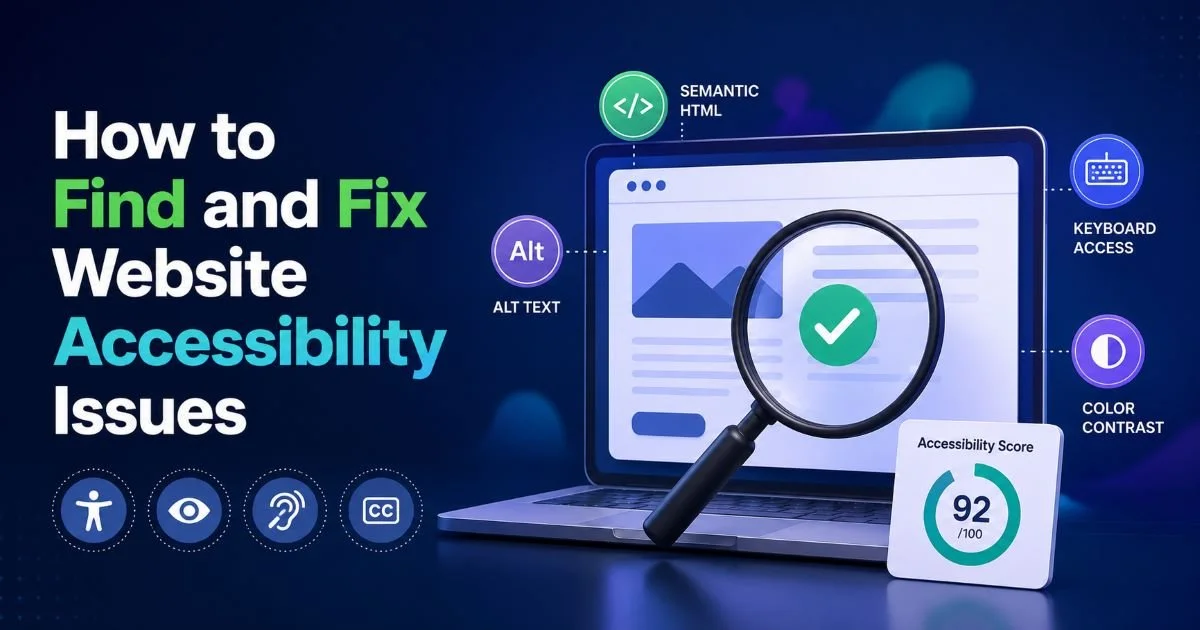
The fixes are usually straightforward once you know where to look. This guide walks you through a concrete, step-by-step WCAG compliance checklist built specifically for small business websites. If you've been looking for a way to find and fix website accessibility issues without hiring an enterprise-level consultant, this is your starting point. Let's get into the practical work.
Key Takeaways
- WCAG 2.1 Level AA is the standard most small businesses should target for compliance.
- Automated testing tools catch roughly 30% of accessibility issues manual testing covers the rest.
- Every meaningful image needs descriptive alt text that conveys its purpose in context.
- Keyboard navigation and screen reader compatibility are non-negotiable baseline requirements.
- Regular audits prevent accessibility debt from accumulating as your site grows.
Step 1: Understand WCAG Levels and Pick Your Target
WCAG organizes its success criteria into three conformance levels: A, AA, and AAA. Level A covers the absolute minimum things, like providing text alternatives for non-text content and making sure content doesn't rely solely on color to convey meaning. Level AA adds requirements around color contrast ratios (4.5:1 for normal text), text resizing, and consistent navigation patterns. Level AAA is the gold standard but is rarely achievable across an entire site, as it demands things like sign language interpretation for video content.
For most small businesses, Level AA is the right target. It's the standard referenced by the ADA, the European Accessibility Act, and most government procurement requirements. Courts and regulators generally expect AA conformance when evaluating web accessibility complaints. Aiming for anything less leaves you exposed; aiming for AAA across the board is impractical for most budgets.
Which Level Actually Matters for Small Business
Think of Level AA as the equivalent of building code for your physical storefront. You wouldn't skip wheelchair ramps because they're expensive, you'd build them because they're required and because they serve your customers. The same logic applies to digital accessibility. Level AA compliance covers the criteria that directly impact the largest number of users with disabilities, including people with low vision, motor impairments, and cognitive differences.
That statistic from WebAIM's annual survey reveals how widespread these issues remain. Small business sites are no exception. The good news is that many Level AA criteria map directly to good web development practices you're likely already following, such as semantic HTML, logical heading structures, and responsive design. The gap is usually in the details: an overlooked form label here, a decorative image missing an empty alt attribute there.
WCAG 2.2 was published in October 2023 and adds nine new success criteria. Review these additions when planning your compliance roadmap.
Step 2: Audit Your Visual and Text Content
Alt Text and Images
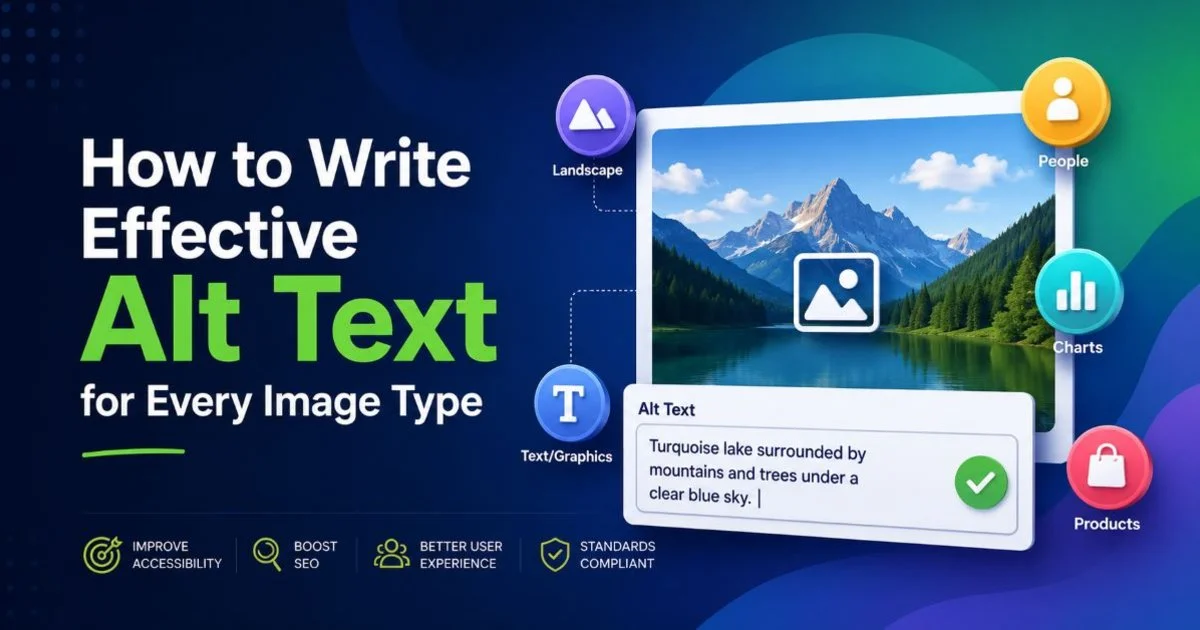
Every image on your site falls into one of three categories: informative, decorative, or functional. Informative images need alt text that describes what the image communicates in context, not just what it looks like. A photo of a team at a conference should say something like "Marketing team presenting at the 2024 Digital Summit" rather than "photo" or "team.jpg." If you want to master this, the guide on how to write effective alt text for every image type breaks this down comprehensively.
Decorative images, backgrounds, dividers, and stock photos used purely for visual appeal should have an empty alt attribute (alt="") so screen readers skip them entirely. Functional images like icons inside buttons need alt text that describes the action, not the icon. A magnifying glass icon in a search button should have alt text reading "Search," not "magnifying glass." Getting this wrong creates confusing, cluttered experiences for assistive technology users.
Run a quick audit by disabling images in your browser. If the page still makes sense from the alt text alone, you're on the right track.
Color Contrast and Typography
Color contrast is one of the most common WCAG failures on small business sites, especially those using brand colors that weren't designed with accessibility in mind. The minimum contrast ratio for normal text (under 18pt) is 4.5:1 against its background. Large text (18pt or 14pt bold) requires 3:1. Tools like the WebAIM Contrast Checker or browser DevTools can measure this instantly. Light gray text on a white background might look elegant in a mockup, but it fails people with low vision.
Typography extends beyond contrast. Body text should be resizable up to 200% without breaking layouts or causing horizontal scrolling. Line height should be at least 1.5 times the font size for body text. Paragraph spacing should be at least 2 times the font size. These aren't arbitrary numbers; they come directly from WCAG 2.1 Success Criterion 1.4.12 (Text Spacing). Small business themes from WordPress or Squarespace sometimes override these values with rigid CSS, so check your site in practice, not just in theory.
Step 3: Test Interactive Elements and Navigation
Keyboard and Screen Reader Testing
Put your mouse aside and navigate your entire site using only the Tab, Enter, Escape, and arrow keys. Every interactive element links, buttons, form fields, dropdown menus, and modals, must be reachable and operable via keyboard alone. Focus indicators (the visible outline showing which element is currently selected) must be clearly visible. Many CSS resets strip these out with outline: none, which is one of the most damaging single lines of code for web usability. Replace removed outlines with custom focus styles that match your brand.
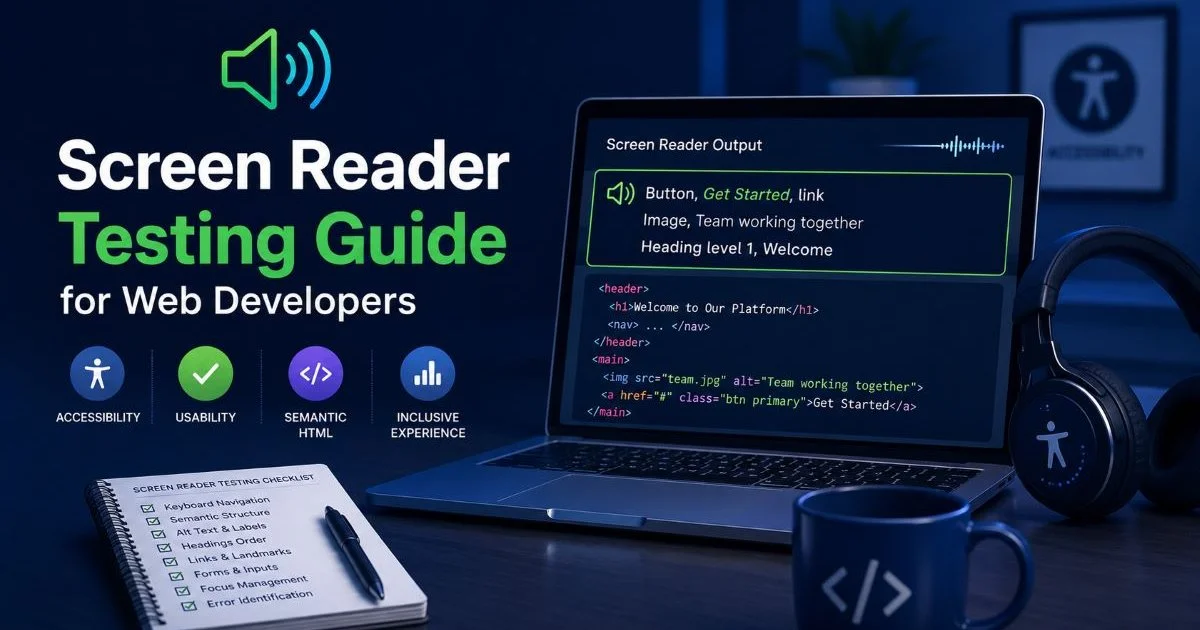
Screen reader testing is equally important and catches issues that automated tools miss entirely. VoiceOver (macOS/iOS), NVDA (Windows, free), and TalkDown (Android) are the primary tools. Test whether your headings create a logical document outline, whether form fields announce their labels correctly, and whether dynamic content updates (like cart totals or error messages) are communicated via ARIA live regions. Our screen reader testing guide for web developers covers the specific commands and workflows you'll need.
ARIA attributes are powerful but dangerous when misused. The first rule of ARIA is: don't use ARIA if native HTML can achieve the same result.
Forms deserve particular attention. Every input needs a programmatically associated label, not just a placeholder. Error messages should identify the specific field and describe how to fix the problem. Required fields should be marked in a way that doesn't rely solely on color (a red asterisk alone isn't sufficient without text or ARIA markup). Authentication flows also impact accessibility; balancing identity provider security and user experience requires careful attention to accessible form design and clear error recovery paths.
Don't forget skip navigation links. A hidden "Skip to main content" link that becomes visible on focus lets keyboard users bypass repetitive navigation menus. It's a Level A requirement and takes about five minutes to implement. Modal dialogs need to trap focus within them while open and return focus to the triggering element when closed. These patterns are well-documented and straightforward to build, but they're frequently missing from small business sites built on templates.
"Accessibility testing without a keyboard and a screen reader is like testing responsive design without resizing the browser."
Step 4: Automate Ongoing Checks and Maintain Compliance
| Category | What to Check | WCAG Level | Common Fix |
|---|---|---|---|
| Images | Alt text present and descriptive | A | Add contextual alt attributes |
| Color | Contrast ratio meets 4.5:1 | AA | Adjust foreground or background colors |
| Forms | Labels programmatically linked | A | Use <label for=""> or aria-labelledby |
| Keyboard | All elements focusable and operable | A | Use native HTML elements; add tabindex if needed |
| Navigation | Skip links and logical heading order | A | Add skip nav; restructure headings |
| Media | Captions and transcripts for video/audio | A/AA | Add closed captions and text alternatives |
| Text | Resizable to 200% without loss | AA | Use relative units (rem/em) for fonts |
Building an Accessibility Workflow
Automated tools are your first line of defense but not your last. axe DevTools, WAVE, and Lighthouse catch structural issues like missing alt text, improper heading hierarchy, and ARIA misuse. Integrate these into your CI/CD pipeline or run them as part of your pre-launch checklist. The article on top free tools to audit website accessibility fast compares the best options available right now. Automated scans are fast, repeatable, and great at catching regressions.
Manual testing fills the gaps that automation can't reach. Schedule quarterly accessibility reviews that include keyboard navigation walkthroughs, screen reader testing on at least two platforms, and a review of any new content or features added since the last check. Assign ownership if nobody is responsible for accessibility, as it erodes over time. Even a fifteen-minute weekly spot check of new pages keeps standards from slipping.
Document your accessibility statement and publish it on your site. This should describe your conformance target (typically WCAG 2.1 Level AA), known limitations, and a way for users to report barriers they encounter. It's not just a legal shield; it signals to disabled users that you take their experience seriously. Update this statement whenever you complete a new audit cycle or remediate significant issues. Transparency builds trust and demonstrates ongoing commitment rather than a one-time checkbox effort.
Add accessibility checks to your content management workflow. Train content editors to write descriptive link text, add alt text, and use proper heading structure every time they publish.
Frequently Asked Questions
?How do I manually test keyboard navigation on my small business site?
?Can automated tools alone make my site WCAG 2.1 AA compliant?
?How long does a WCAG AA audit realistically take for a small business site?
?Is missing alt text really a legal risk or just a best-practice suggestion?
Final Thoughts
WCAG compliance for small business sites isn't about perfection; it's about consistent, intentional progress. Start with automated scans to catch the low-hanging fruit, then layer in manual keyboard and screen reader testing to address deeper usability problems. Treat accessibility as an ongoing practice woven into your development and content workflows, not a one-time project. The checklist above gives you a concrete framework. Pick one section, audit it this week, fix what you find, and move to the next.
Disclaimer: Portions of this content may have been generated using AI tools to enhance clarity and brevity. While reviewed by a human, independent verification is encouraged.